

If you've ever opened a freshly exported HTML archive and found that cross-database doclinks don't work, you're not alone. It's a common support question we get from teams working through a Domino decommission, and the fix is almost always the same thing: the archiving sequence wasn't right.
Let’s take a look at why the sequence matters and walk through exactly what to do.
How Export handles doclinks under the hood
When Teamstudio Export archives a Notes database it produces a .tse file — a DXL/XML representation of the database content. As part of that process it generates a unidindex.txt file, which maps Note IDs to Universal Note IDs (UNIDs). That UNID index is what makes doclinks work in the exported HTML or PDF archives — it's how Export knows which archived file corresponds to the document a link is pointing at.
For doclinks within a single database, that's straightforward enough. Cross-database doclinks are where sequencing becomes critical. When Export generates your HTML or PDF output, it needs the UNID index from every linked database to resolve external doclinks. If a target database hasn't been fully archived yet when you kick off the HTML export, those links simply can't be resolved — and they'll be broken in the output with no obvious error to tell you why.
Before you start: map your database relationships
It's worth spending a few minutes before you touch the Export client to identify which databases are linked to which. You need both sides of every doclink relationship — the database containing the link and the database it points to. Both must be archived as a group.
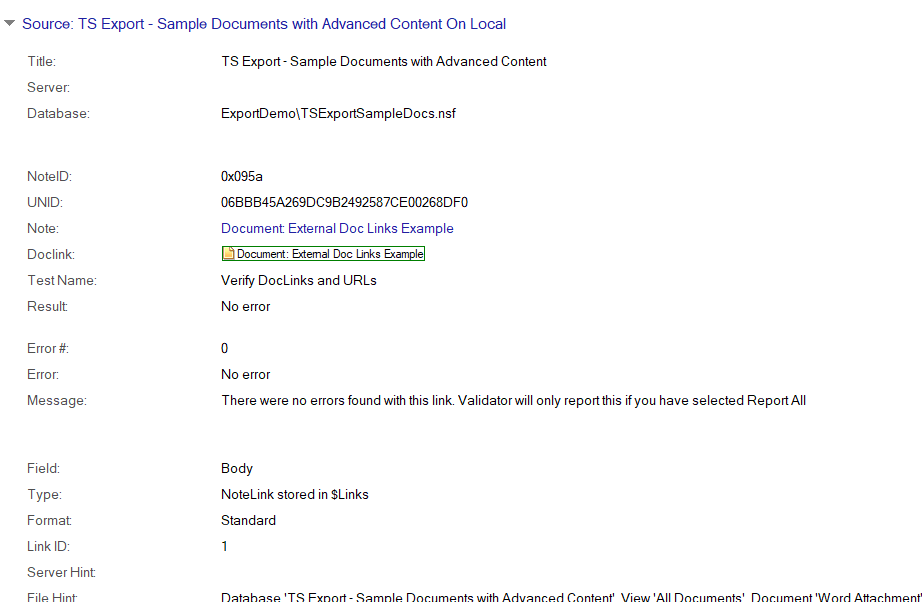
If you're not sure where all the links are, Teamstudio Validator's Report All Links option will surface cross-database doclink relationships across your environment. It may be worth running this before you start, particularly on older application clusters that may have grown organically over the years.
Step 1 — Archive all databases in the group first
For each database in your linked group, right-click in the Export client and choose Archive. That's it — just Archive, not Export to HTML or Export to PDF. You're only building the .tse files at this stage.
The rule here is simple but non-negotiable: every database in the group must have a completed DXL archive before you generate HTML or PDF output for any of them. The user guide puts it plainly — "you should archive all of the databases before exporting any of them to HTML."
One thing to watch: Export runs up to three archiving tasks simultaneously, and it's easy to assume everything is done when the progress window goes quiet. Check the status column in the main window — the archive icon needs to be showing against every database in the group before you move on.
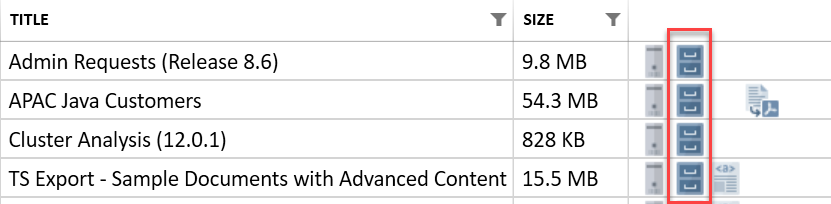
Ensure ALL XML/DXL archives are completed before moving on.
We've seen cases where a large target database was still processing when the HTML export started, producing broken links that looked fine on the surface until someone actually clicked them.
Step 2 — Make sure all archives are in the same Archive Folder
All the .tse files for your linked databases need to be in the same root Archive Folder — the one configured under File > Configuration. When Export resolves cross-database doclinks during HTML or PDF generation, it searches within that folder structure. If archives are split across different locations, it won't find them.
This is usually only an issue if you're running Export on multiple workstations or have reorganized your folder structure mid-project. Many times we have seen customers do this trying to save disk space on the Export PC. It is worth a quick check before proceeding.
Step 3 — Generate your HTML or PDF output
Once every database in the group has a completed archive in the right folder, right-click and select Export to HTML or Export to PDF. Export will now resolve all cross-database doclinks using the UNID indexes it built during archiving.
If your source data hasn't changed, you won't need to re-archive. HTML and PDF output can be regenerated from the existing .tse files at any time — useful if you need to reprocess after an Export update improves rendering or adds features.
Step 4 — Host the archives together
This one catches people out at deployment. All linked archive folders need to live under the same parent folder at the hosting location — whether that's IIS, a network share, or SharePoint Online. Export uses relative paths for inter-archive doclinks, so separating the folders at the hosting layer breaks them regardless of how correctly everything was generated.
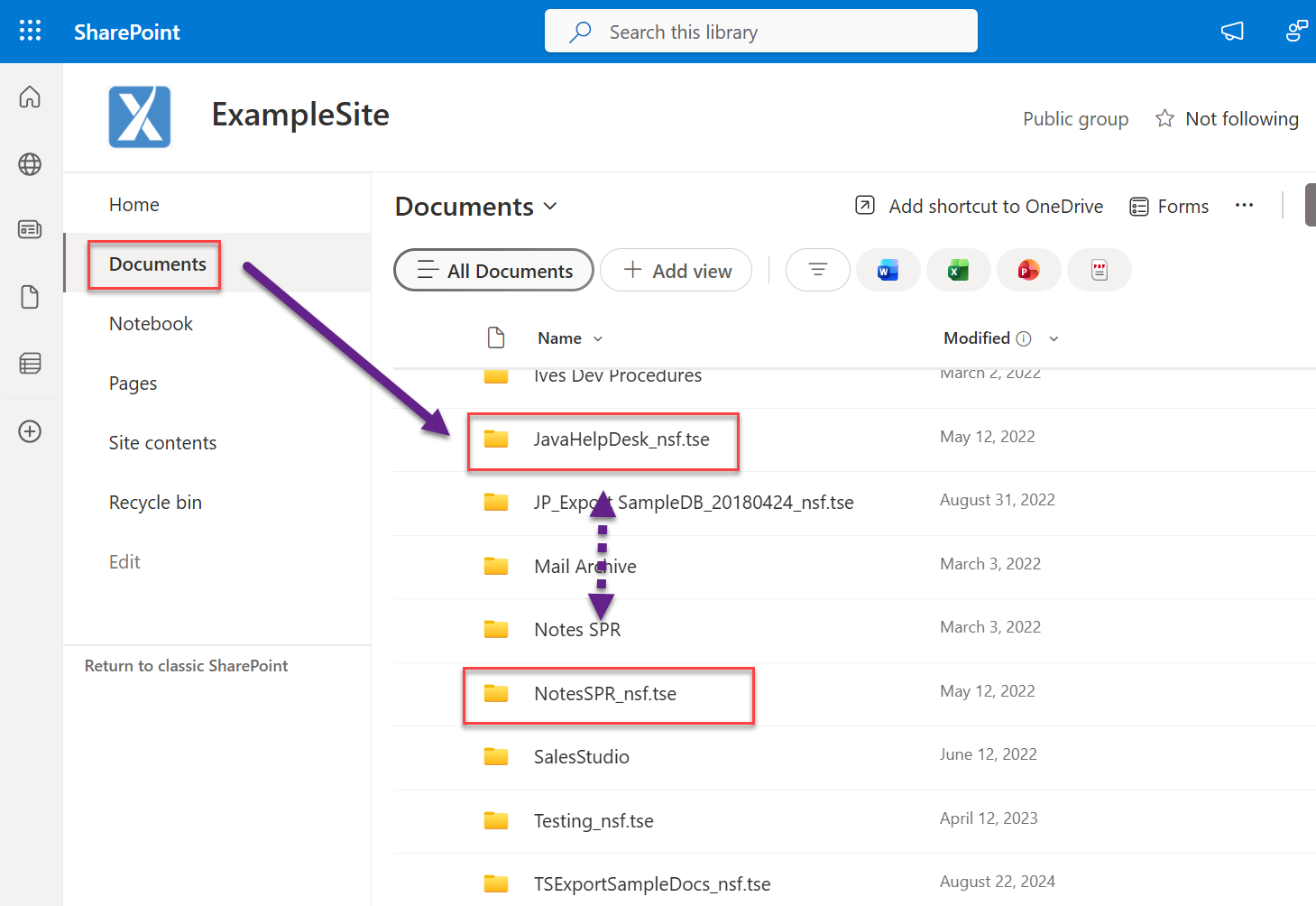
In this case both the JavaHelpDesk and NotesSPR databases contain external doclinks to one another and must be hosted from the same SharePoint site ‘ExampleSite’ document library.
For SharePoint specifically, both archive folders need to be in the same Document Library on the same site.
Step 5 — Test before you hand over
Click through a representative sample of cross-database doclinks in the hosted archive before you call it done. If you find broken links, the cause is almost always one of three things: a DXL archive that wasn't complete when you ran the HTML export, archives split across different root folders, or archive folders that were separated at the hosting layer. Work back through the steps above and rerun the HTML export once the underlying issue is fixed. Did the doclinks even work in the original NSF to begin with? It may be worth verifying.
A few other things worth knowing
Embedded views that pull data from an external database follow the same rule — that external database needs a completed DXL archive before you generate HTML or PDF output for the database containing the view. This applies to Export 4.5.0 and later, after we added support for embedded views.
One last thing on retention planning: if you're segmenting archives across different retention tiers, be careful about deleting one half of a linked pair. Once the DXL archive for a target database is gone, there's no way to reconstruct them without access to the original Notes data. Treat linked database groups as a single unit for retention purposes.
As always, if you have any questions or would like to arrange a demo, please reach out. We’re happy to help.