

Since we added CSV export to Teamstudio Usage, the question we heard often has shifted from can I get this data out? to what should I actually put in the report? Usage collects a lot about your environment: every database, every user, and the activity that ties the two together. The CSV Export Data dialog lets you pick and order exactly which of those fields land in your CSV.
So rather than walk through every field, this post takes a project-first approach. Below are five reports, each aimed at a specific kind of Domino project: a migration inventory, an archive triage list, a license review, a compliance audit, and a decommission readiness check. For each one we suggest the report type to choose, the fields worth including, how to sort them, and, just as importantly, what to filter out before you run it.
CSV export is part of Usage v1.1 and later, available at no additional cost for customers with a valid license.
| Report | Use it to | Report type | Date range | Before you run |
|---|---|---|---|---|
| 1. Migration Inventory | List every real application, grouped by template, to plan migration batches | Databases | All Time | Ignore mail and system templates, plus monitoring and admin IDs |
| 2. Archive Triage | Rank dormant databases holding the most data | Databases | Last 12 months or longer | Ignore system databases, plus monitoring and admin IDs |
| 3. License Review | Find inactive IDs to reclaim | Users | Last 12 months, or your renewal cycle | Ignore only non-person entries (-Default-, Anonymous, device, service and signing IDs). Remove any admin rules. |
| 4. Compliance Audit | See who accessed specific applications, and when | Detail | All Time or your audit period | Remove all user ignore rules so everyone is included |
| 5. Decommission Readiness | Confirm users have left migrated applications | Databases | Last 2–4 weeks, or Custom from go-live | Keep your filter set the same between weekly runs |
Ignore rules apply everywhere in Usage, so check Window > Filters before each export.
First Filter, Then Export
This is the step that makes the difference between a report you can act on and a spreadsheet you have to clean up by hand, so it's worth thirty seconds before we get to the reports themselves.
Usage counts everything it sees, and in a real environment that includes a lot of activity you don't care about for a given question. Think mail files, Domino system databases, monitoring IDs, signing IDs, and the wide-access IDs (including administrators' own accounts used for scanning) that touch nearly every database on the server. Left in, they drown out or muddle the signal.
The fix is the Ignore feature. Right-click a database or a user in the Usage UI and choose Ignore, and its metrics are removed from the calculations. They aren't just hidden from a column; they're taken out of the totals, the unique-user counts, and the last-accessed dates. For a database you get four scopes to choose from: this database on this server, on any server, that database and all its replicas, or every database built from a given template.
That last option is the quick way to drop mail: one rule per mail template. Long-lived environments usually have several (StdR50Mail, StdR85Mail, StdR9Mail and so on), so check which ones your mail files inherit from. Clear out admin4, the catalog, busytime, events and other system templates the same way. For a user, Ignore removes that one specific ID.

The Ignore menu for a database.
Two things to know about how ignoring behaves:
It's global, and it's reversible. Ignore rules apply to the whole Usage UI, and the CSV export simply uses whatever is currently in effect. Nothing is deleted. Ignored metrics are only hidden, so you can re-include them at any time. That means you can set up a filter set for one report, run it, and clear it before the next.
You manage the rules in one place. Open Window > Filters to see every active rule and remove any you no longer want. It's worth a quick look here before each export so you know exactly what's in and what's out.
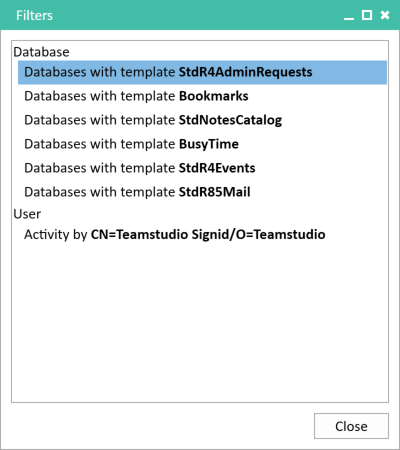
The Filters panel shows every active ignore rule in one place. Remove any rule here to bring its metrics back into your reports.
The Export Dialog in Brief
Every report below starts from File > Export Data. Pick a Report Type: Databases gives one row per database, Users one row per user, and Detail one row per user per database. Then set a Date Range of All Time, Last (days, months or years), or Custom. The range scopes every activity metric.
Add fields with Add, remove one by right-clicking it and choosing Remove, and give each a sort of Ascending, Descending or None. Sort priority follows the field order, top to bottom. Save stores your fields and their order so you can Load them later; your ignore rules stay global and aren't part of a saved report. And since the output is CSV, anything you can't narrow inside Usage you can slice afterward in Excel or Power BI.
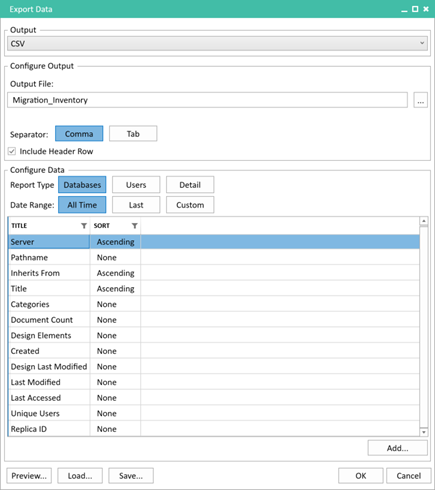
The Export Data dialog: choose a report type and date range, build your field list, set the sort, then Preview, or Save the field list for reuse.
1. Migration Inventory: Know What You Have
Report type: Databases. The scoping baseline for any migration: a complete list of real applications, grouped so you can plan them in batches.
Before you run: ignore mail and Domino system templates so the list is applications, not plumbing, and ignore monitoring and admin IDs so Unique Users counts real people rather than every scan. Leave the Date Range on All Time here. An inventory should show every application, and its Last Accessed and Unique Users are most useful across the full history. (Categories is worth adding if your environment populates it, though many don't.)
Fields: Server, Pathname, Title, Inherits From, Categories, Document Count, Design Elements, Created, Design Last Modified, Last Modified, Last Accessed, Unique Users, Replica ID.
Sort: Server, then Inherits From, then Title.
What it tells you: Inherits From groups applications into template families, so similar apps can be assessed and migrated together. Design Elements is a rough complexity signal, and a recent Design Last Modified flags an application someone is still actively developing, which is usually a sign to leave it where it is for now. Replica ID reveals where the same application exists in more than one place, which is often where migration scope quietly doubles. If untangling replicas is the point of a particular run, do it before you apply any "all replicas" ignore rule, or the copies you're trying to see will already be gone from the report.
2. Archive Triage: Decide What to Keep, Archive, or Retire
Report type: Databases. Your shortlist of databases whose data still matters but whose application doesn’t need to come along, ranked by how dormant they are. These are prime candidates for Teamstudio Export, which moves the data out of Domino into open, portable formats so it doesn’t hold up the main migration.
Before you run: set the Date Range to Last 12 months (or longer), and ignore monitoring and admin accounts as well as system databases. Otherwise a database that only a monitoring ID has "touched" will look active.
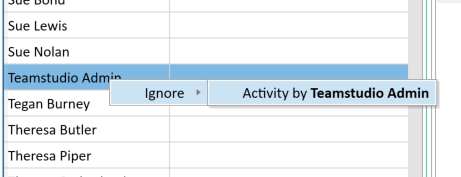
Ignoring a user removes that one ID from every metric. Here, an admin account whose routine access would otherwise make dormant databases look active.
Fields: Title, Server, Pathname, Last Accessed, Unique Days, Unique Users, Total Count, Document Count, Last Modified, Design Last Modified.
Sort: Last Accessed ascending (blank dates sort first), then Document Count descending, so the dormant databases holding the most data sit at the top.
What it tells you: a blank Last Accessed with a real Document Count is an archive-then-retire candidate: data worth preserving that nobody is opening. Low Unique Days points to applications used rarely enough to move to a read-only archive. And a database that is still accessed but whose data hasn't changed in a year or more is a reference application, a good fit for an HTML archive that stays searchable without a live server behind it.
A blank Last Accessed here only means "not in the last 12 months." To see how long each candidate has really been dormant, Load the same saved report and rerun it at All Time.
3. License Review: Find Inactive User IDs
Report type: Users. Perhaps the fastest cost-saving report in Usage: who is genuinely active, and who is holding an ID they no longer use.
Before you run: set the Date Range to Last 12 months, or match it to your license renewal cycle. Then ignore only the non-person entries: the -Default- and Anonymous rows, device accounts, and service or signing IDs. Leave real people in, including administrators, since they are the license holders you're actually reviewing. If you've just run the triage report, open Window > Filters and remove any admin rules left over from it, or those IDs will be missing from this list.
Fields: Name, Last Accessed, Unique Days, Unique Databases, Notes Count, Web Count, Total Count.
Sort: Last Accessed ascending, blank dates first. Never-used IDs sit at the very top, followed by the longest-dormant, which is exactly your reclaim priority order.
What it tells you: Usage lists users with no activity at all, which is precisely what makes this report useful. Those zero-activity IDs are your first candidates to reclaim or investigate. Unique Days is a better engagement signal than raw totals, which tend to be skewed by a handful of heavy or automated accounts. The Notes-versus-Web split is also informative. In our own data, of the users with any activity, roughly two-thirds were web-only and a quarter Notes-only. That's useful context for a license review, though we'd stop short of drawing licensing conclusions from it directly. Usage has no department or email field, so join the CSV to your directory in a spreadsheet when you need that context.
4. Compliance Audit: Who Touched What, and When
Report type: Detail. The user-by-database view, for when a security or compliance question is about specific applications.
Before you run: keep everyone in for this one. You generally want to see administrator, service and anonymous access in an audit. Because ignore rules are global, open Window > Filters first and remove every user rule left over from earlier reports; otherwise the audit will quietly leave out exactly the accesses it should show. Then export the full Detail report and filter to your target applications by Pathname in your spreadsheet. Detail carries one row per user per database, so on a large environment this file can run to tens of thousands of rows. That's expected, and no problem for a spreadsheet, but worth knowing before you open it.
Fields: Name, Server, Pathname, Title, Last Accessed, Unique Days, Notes Count, Web Count, Total Count.
Sort: Pathname, then Total Count descending.
What it tells you: for any named application (HR, finance, legal) you get every ID that accessed it and how recently. It also surfaces the anonymous web footprint, which can reach further than people expect. And with the accounts sorted by activity per database, the top few names are your best available proxy for who owns an application, since Usage doesn't carry an owner or ACL field of its own.
5. Decommission Readiness: Is Anyone Still Using What You Migrated?
Report type: Databases. A short, repeatable check to run after a migration goes live, before you switch the old applications off.
Before you run: set a short Date Range, either Last 2–4 weeks or Custom from your go-live date, and Save the report so you can rerun it on the same fields each week. Save doesn’t store ignore rules, so keep your filter set the same between runs (or note it in the file name) so the weekly numbers stay comparable.
Fields: Title, Server, Pathname, Last Accessed, Unique Days, Unique Users, Total Count, Deleted Date.
Sort: Last Accessed descending, most recent first.
What it tells you: the report covers your whole environment, so filter it to your list of migrated applications in your spreadsheet. Any of those still showing recent access means users haven't moved over yet, and the earlier you see it, the easier the conversation. Deleted Date is the date a database dropped out of the server catalog. Usage keeps the accumulated metrics up to that point and records when it stopped seeing the database, so this column doubles as confirmation that a retired application is genuinely gone, along with the usage history it had right up until it disappeared.
Five reports, five kinds of projects, but the same principle runs through all of them: filter first so the numbers mean something, then export a focused set of fields you can hand to the stakeholder who needs it. Once a report earns its place, Save it so it's quick to rebuild next time. And when the inventory and triage reports show you which data has to move, Teamstudio Export can take it out of Domino in formats your new platform can use.
For details on how to use Teamstudio Usage, please refer to the Usage product documentation.
If you have any questions or would like to arrange a demo of Teamstudio Usage or Teamstudio Export, please reach out. We're happy to help.